How Scrintime works
Set screen-time limits and block distracting or unsafe websites on a Windows PC — managed from your phone or computer.
What Scrintime is
Scrintime has two parts that work together:
- This dashboard — where you (the parent) add devices, set daily screen-time limits, and choose what to block.
- The Scrintime Windows app — installed on your child's PC. It runs in the background and enforces your rules, even offline. It keeps working after a restart and can't be closed or removed without your PIN.
The two talk to each other over the internet. You make changes here; the device applies them within a minute or two.
Getting started
1Create your account
Sign up with any email address, or use “Continue with Google”. The Free plan lets you manage up to 2 devices — you can upgrade later from Billing.
2Set your PIN
Do this first. Choose a 6-digit PIN in your account settings. This PIN is what protects the app on the device — it's required to unlock a locked screen, disable protection, or uninstall the app. Keep it private from your children, and treat it like a password.
3Add a device
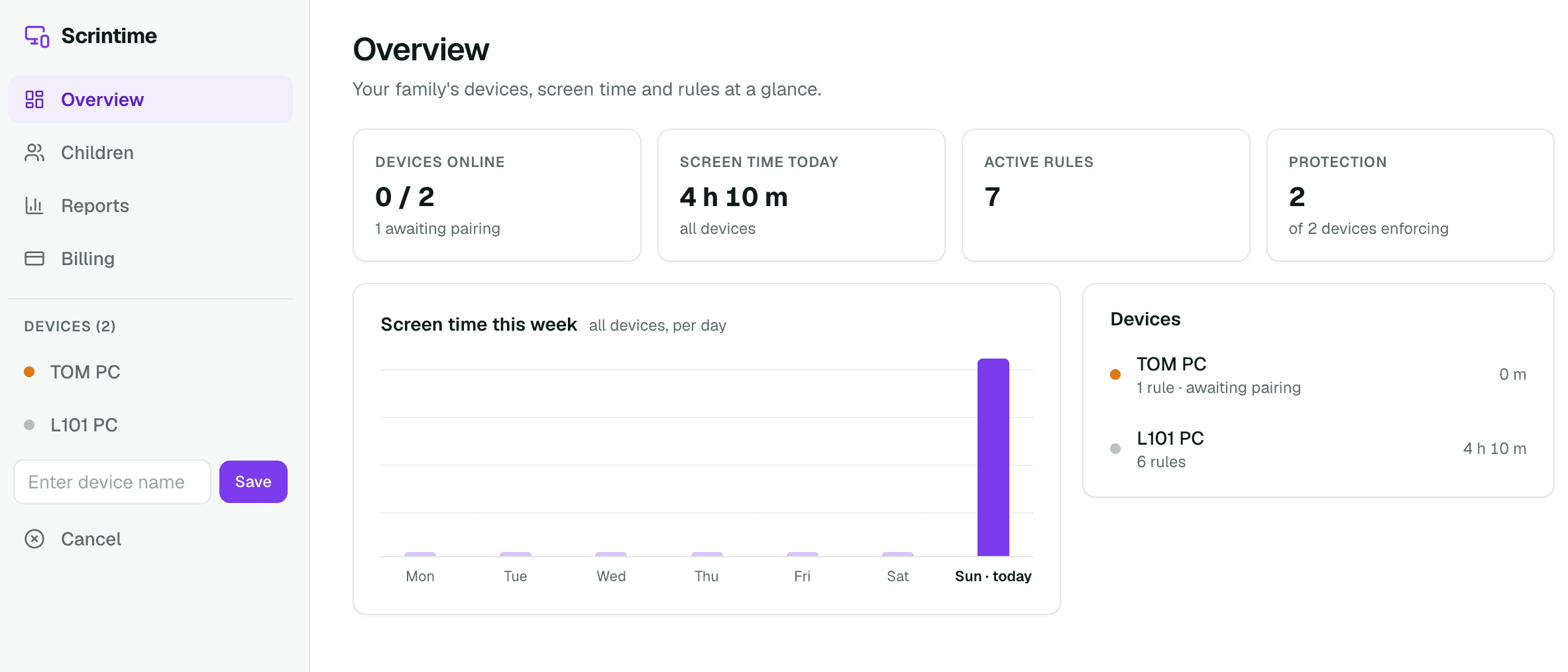
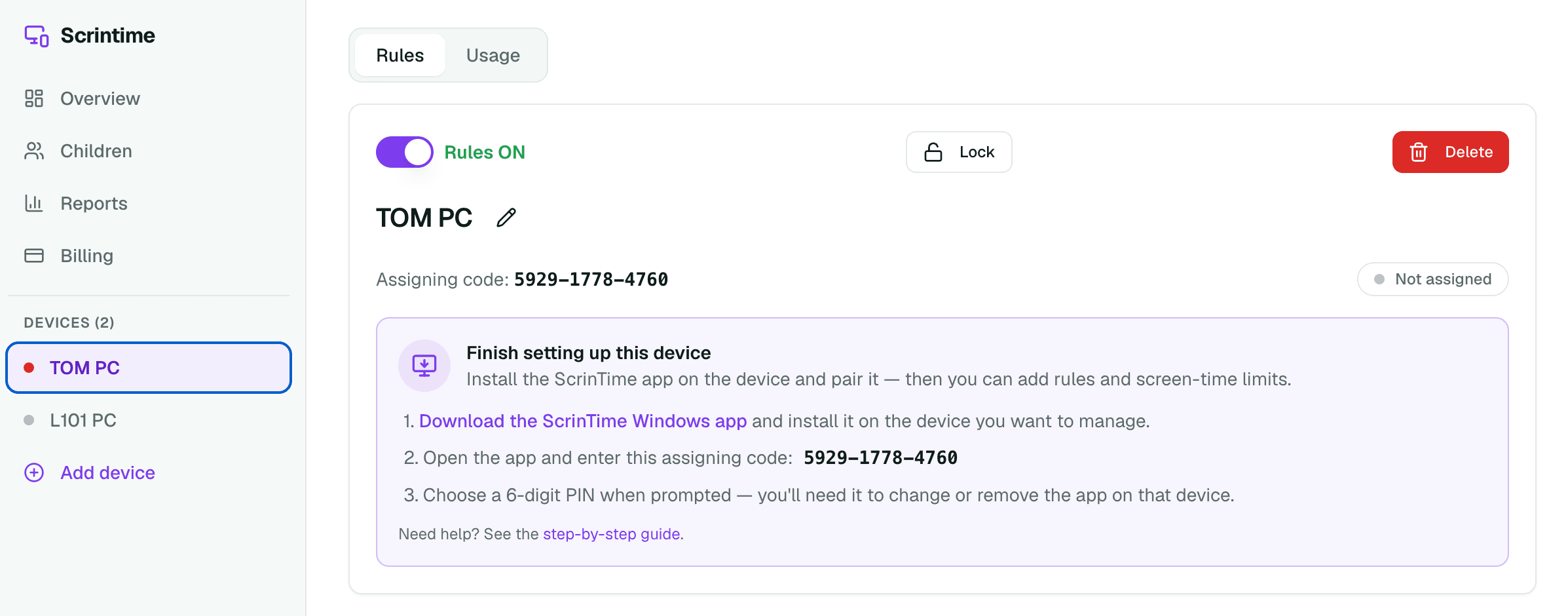
Click Add device and give it a name (e.g. “Sam's laptop”). The device page shows a 12-digit assigning code — you'll need it in the next steps.
4Download & install the Windows app
On the child's PC, open the download page and run the installer. It asks for administrator rights, which it uses only to manage the Windows hosts file and firewall — that's how it blocks sites. It installs a background service, so it starts automatically and keeps running for every user on that PC.
5Pair the device
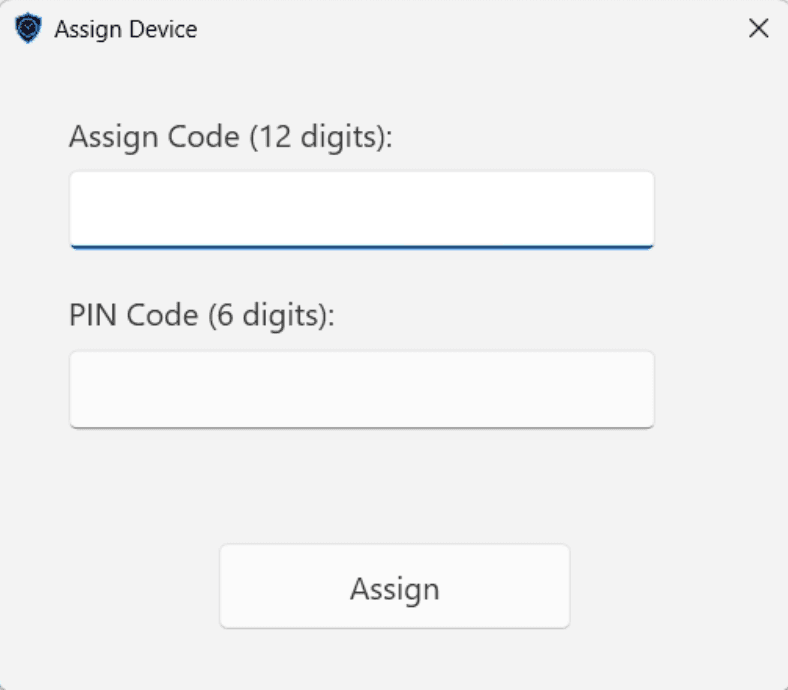
When the app opens, enter the device's 12-digit assigning code (from step 3) and your PIN. Within a minute the device pairs and starts applying your rules. Back on the dashboard, the device stops showing “awaiting pairing”.
Setting limits & blocks
1Screen-time limit (one per device)
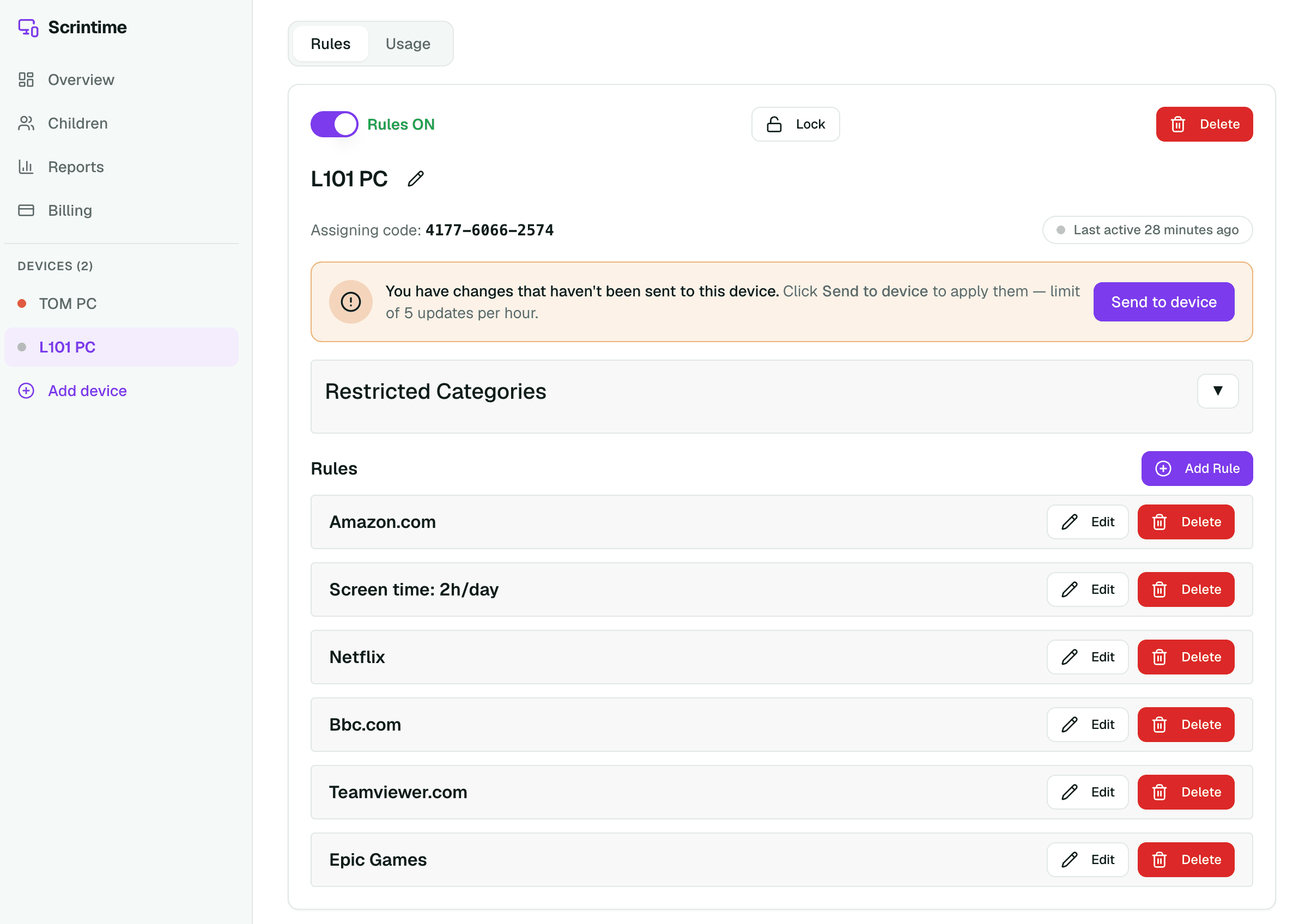
Add a screen time rule to cap how long the device can be used. You can set:
- Daily — a total number of minutes per day.
- Time window — usage only allowed between set hours.
- Per day — a different limit for each day of the week.
Each device has a single daily budget, so there's one screen-time rule per device. Time stops counting while the device is locked.
2Block categories
Pick from ready-made categories (curated lists of well-known sites) if you don't want to list individual websites yourself.
3Block specific websites
Add a custom URL rule to block particular sites, and optionally attach a schedule so the block only applies at certain times (e.g. school hours or bedtime).
4Send to device
Changes aren't live until you click Send to device. Make all your changes, then send them together — updates are limited to a few per hour. If you have unsent changes, the page shows a reminder.
Everyday controls
1Lock or unlock instantly
Use the Lock button on a device to block it right now (for dinner, homework, or bedtime), and Unlock to lift it. The change reaches the device on its next check-in.
2Grant extra time
In the Usage tab you can add bonus minutes to a device's daily limit — handy as a reward or for a legitimate task.
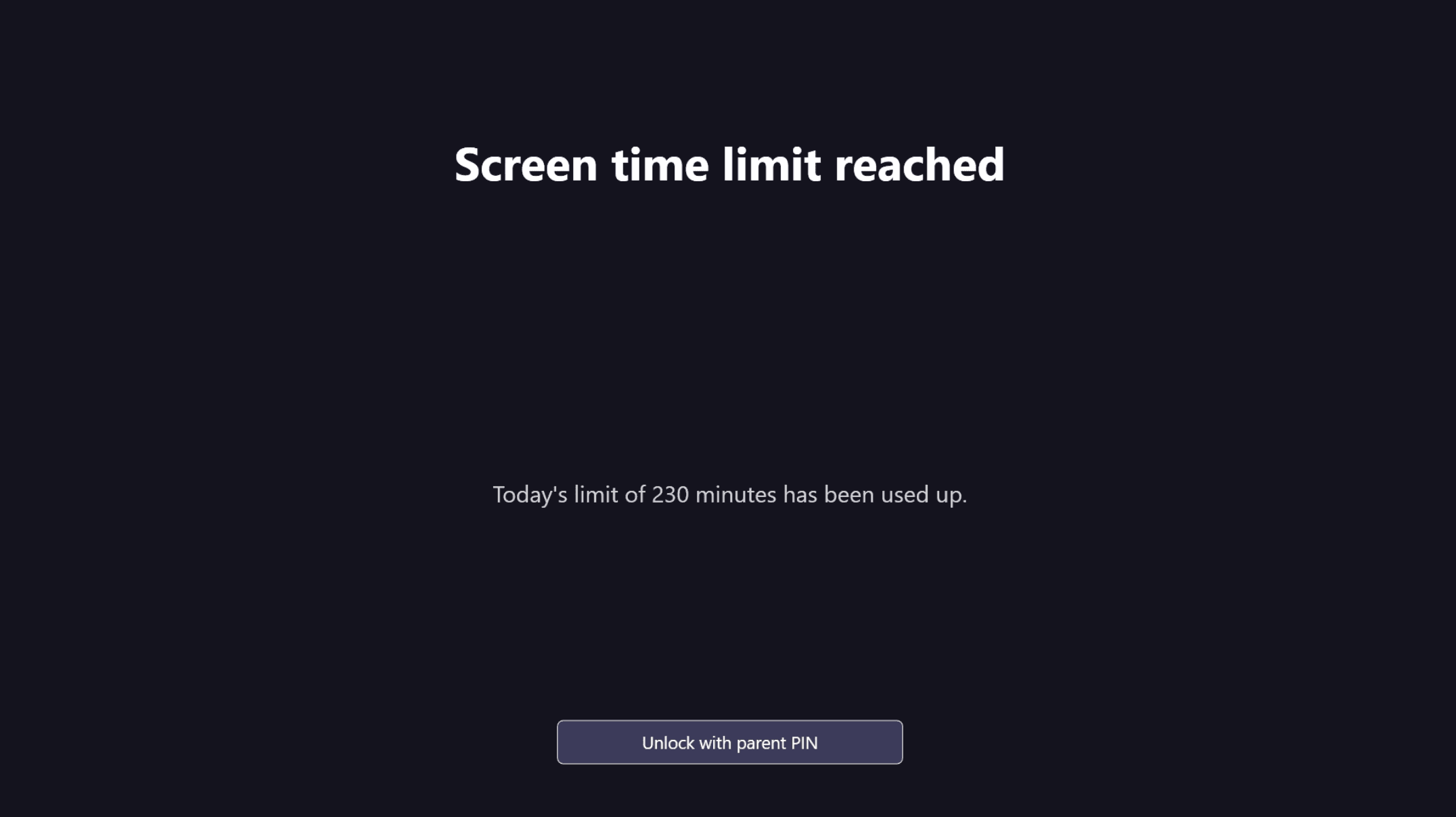
3What your child sees when blocked
When a limit is reached or you've locked the device, a full-screen lock appears explaining why. It can't be closed or bypassed. Entering your PIN on that screen unlocks it and grants a short amount of extra time.
About your PIN
Your 6-digit PIN is the key to everything on the device. It is needed to unlock a locked screen, disable protection, or remove the app. It is verified securely on the device and is never visible to whoever is using the PC.
Choose a PIN your children can't guess, and don't reuse an everyday number like a birthday.
Removing the app
You can uninstall Scrintime from Windows Settings → Apps like any other program — it will ask for your PIN first, so a child can't remove it. Uninstalling cleans up the hosts file and firewall rules it added.
Devices & plans
The Free plan covers 2 devices for as long as we operate the service. Need more? Paid plans add device slots — see Billing in your dashboard. You can change or cancel any time.
Need help?
Have a question or hit a snag? Get in touch via the contact form. For how we handle data, see our Privacy policy.